
Launcher apps, also known as home apps, are a type of core system app. These are essential software components that manage important device functions and control the appearance of the phone’s interface. On Android devices, the launcher is responsible for the home screen layout, app icons, and how apps are opened and organised.
Most Android phones come with a pre-installed launcher that is designed specifically for that device. For example, “One UI Home” is the default launcher on Samsung Galaxy phones, while “Pixel Launcher” is used on Google Pixel phones.
You can usually find your current launcher by going to:
Settings → Apps → Default Apps → Home app
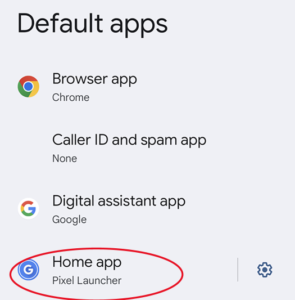
Android allows users to change their launcher if they want to customise how their phone looks and works. For example, there are popular third-party launchers such as Microsoft Launcher, Niagara Launcher, and Nova Launcher, which can be downloaded from the Google Play Store.
These apps allow users to change themes, layouts, and sometimes improve the organisation of apps on the device. Android is designed to be highly customisable, which is why changing launchers is allowed.
However, this flexibility also creates a potential security risk.
Some malicious launcher apps disguise themselves as legitimate launchers. Once installed, they can take control of the home screen and gain extensive access to the device. This can allow them to:
- Steal sensitive information
- Record what the user types
- Force the installation of additional unwanted apps
- Lock or restrict access to certain files
- Drain the battery
- Slow down the phone
- Use large amounts of mobile data
- Send constant notifications
These malicious launchers can be difficult to remove because they may hide their icon from the home screen or interfere with the normal uninstall process.
In some cases, the launcher is installed through another app that appears legitimate, such as a game or utility that was advertised online. That original app may also be difficult to delete. Common traits of this app can include refusing to close or be removed or have icons that remain permanently on the screen.
If you suspect a malicious launcher has been installed, there is usually a straightforward way to fix the problem.
First, go to:
Settings → Apps → Default Apps → Home app
From there, change the selected launcher back to the default launcher that came with your phone. The app currently listed as the home app is likely the one causing the problem. Once you switch back to the default launcher, you should be able to identify and delete the suspicious launcher app.
After removing it, you should also uninstall any apps that were installed without your permission or that you do not recognise. Finally, it is recommended to run a security scan on the device and be cautious about apps you download in the future.